Popup / Section Shop
Create eye-catching promotional popups and embedded section banners with product showcases.
On this page
Step 1: Open the Editor Step 2: Add and Customize Elements Step 3: Adjust the Layout Step 4: Adjust the Button Step 5: PreviewHow to build a popup shop for your websiteVideo documentation coming soon
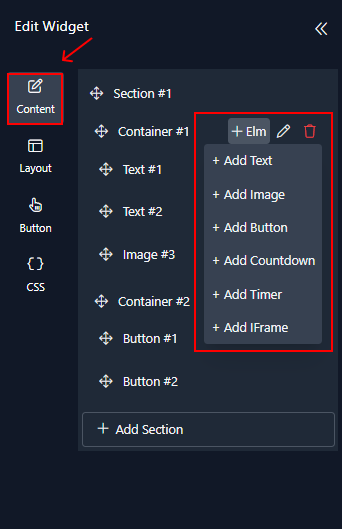
1 Open the Editor
Choose between Popup mode (overlay that appears on top of content) or Section Shop mode (inline section embedded within your page layout).
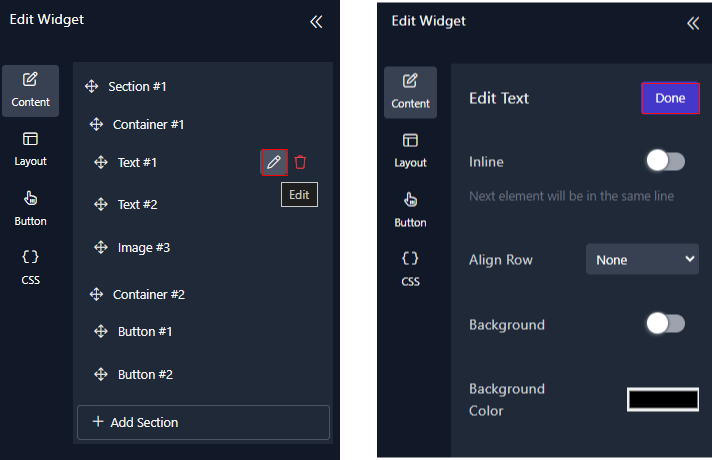
2 Add and Customize Elements
Add text, images, product cards, and CTA buttons. Customize colors, fonts, sizing, and spacing to match your brand.
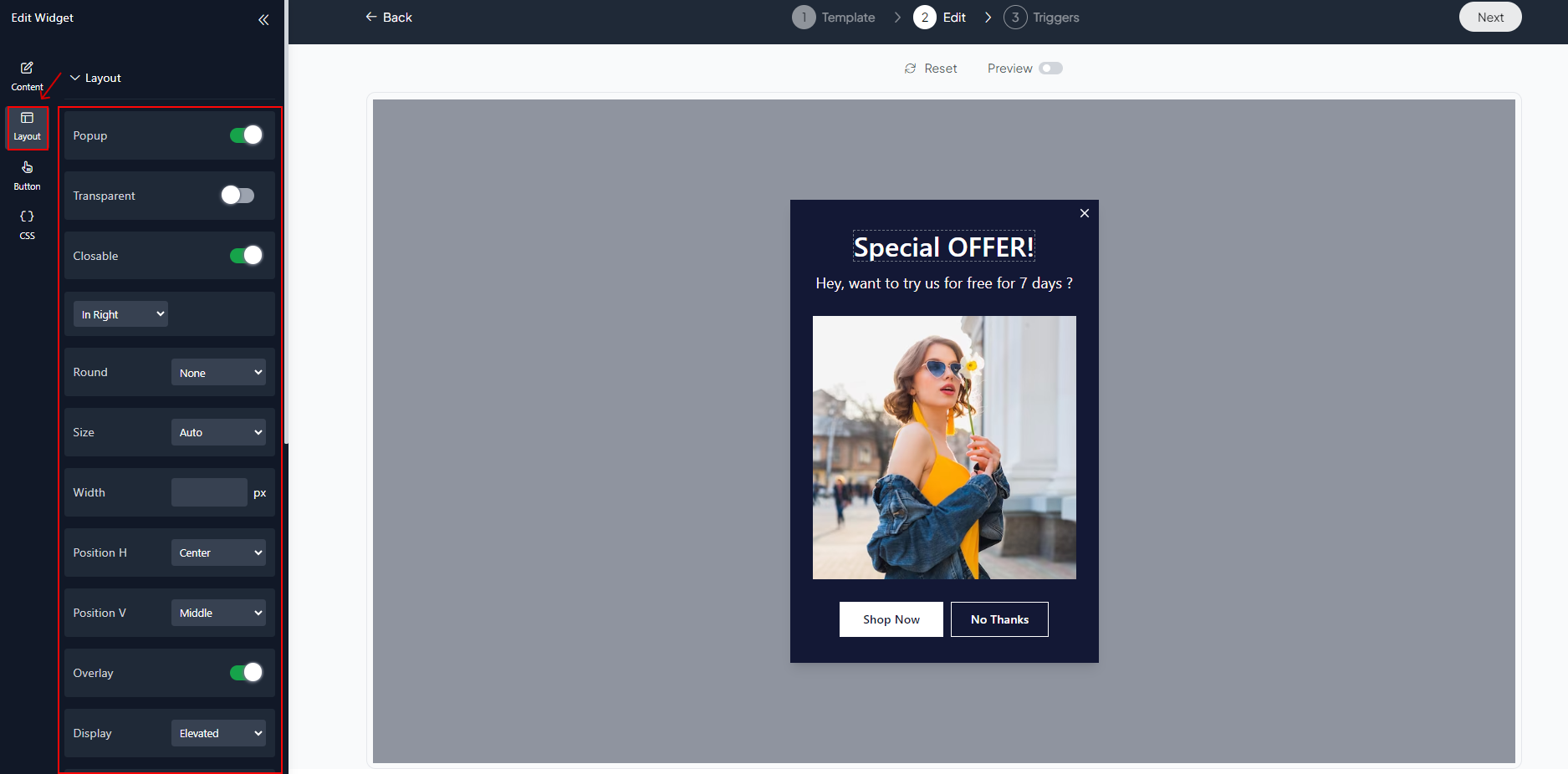
3 Adjust the Layout
Control column count, spacing, alignment, and responsive breakpoints. Preview on desktop, tablet, and mobile.
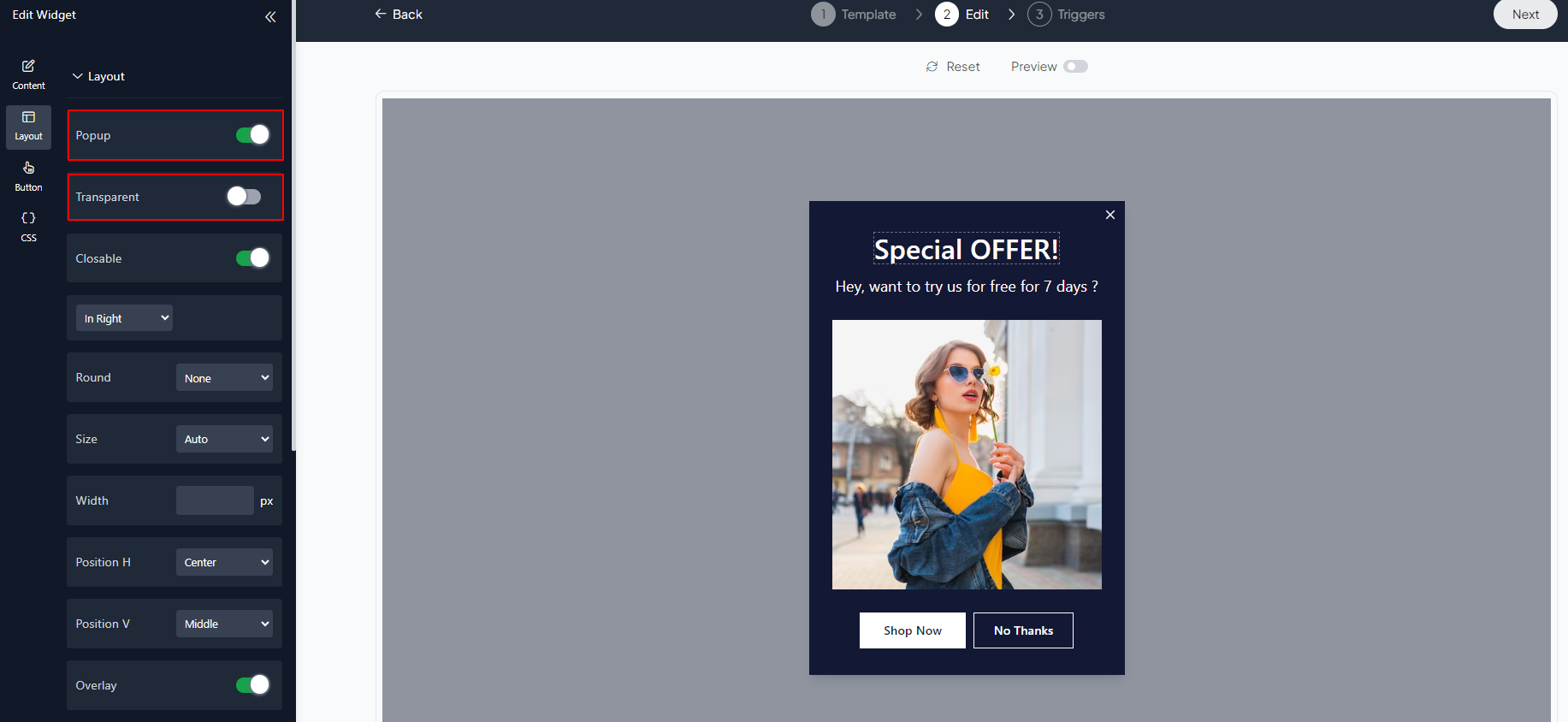
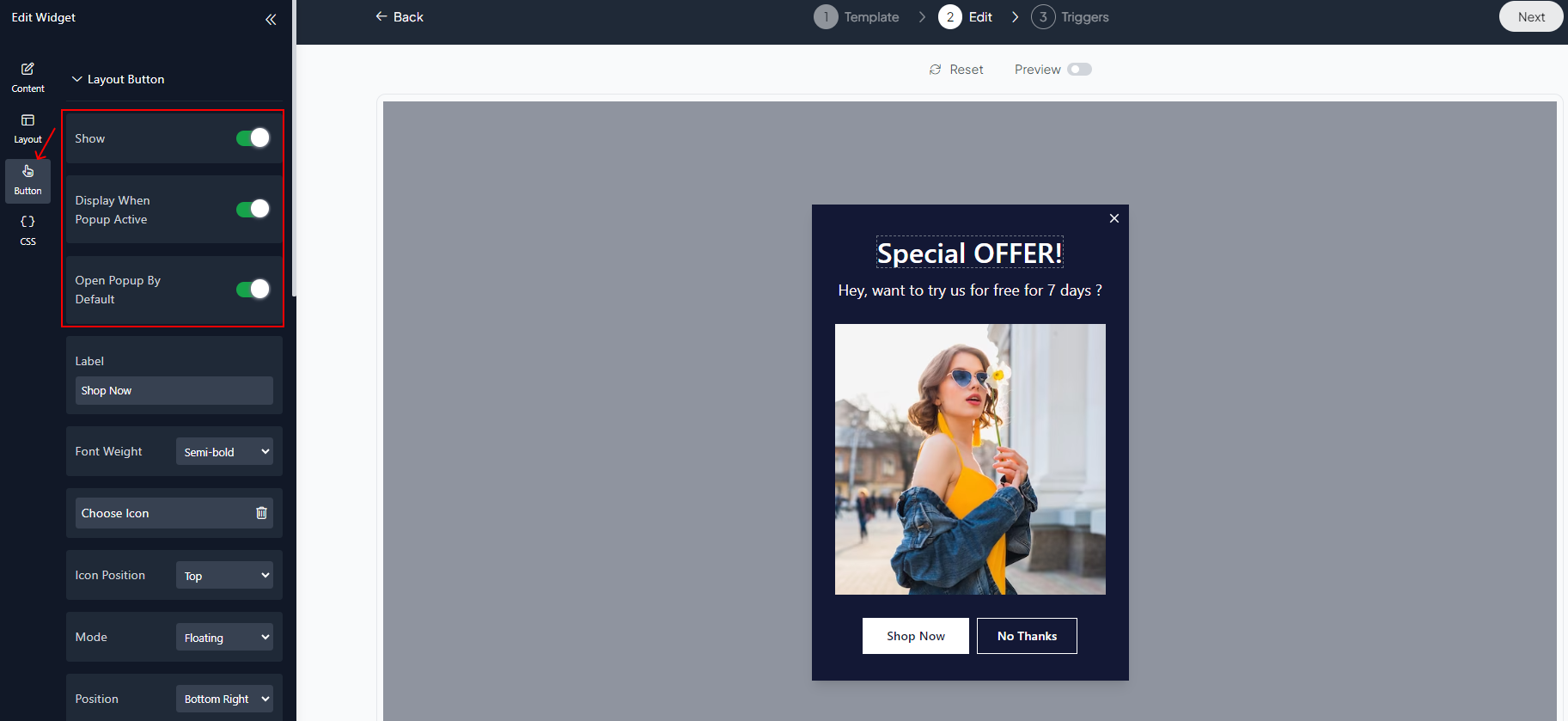
4 Adjust the Button
Customize the CTA button text, link destination, colors, border radius, and hover effects.
5 Preview
Test your block in real-time before publishing. Check all interactive elements and responsive behavior.
When you're done, set up your block triggers, click Create, and your popup shop is live!